Article
How to Send Multiple Photos in Messages on iPhone 6
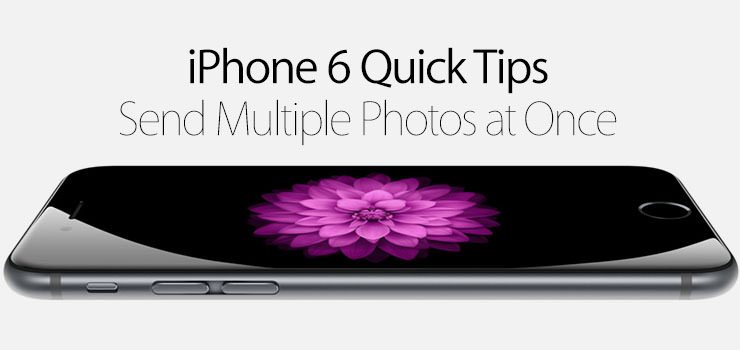
Text messages and iMessage are a great way to share photos with your friends, family, and other contacts. But what if we want to save our fingers some taps and send multiple photos at once? Check out how to send multiple photos and videos in a single message on your iPhone 6.
- Open the Messages app.
- Create a new message, or select an existing conversation.
- Tap on the camera icon at the bottom left of the screen, above the keyboard.
- You will see a carousel of the latest photos in your camera roll.
- Swipe through and select the photos you wish to send.
- Tap on Send Photos, or tap on Add Comment to add text to the message.
- Finally, tap Send to send the photos and a comment if you added one.