Article
How to Use Motions & Gestures on Samsung Galaxy S6
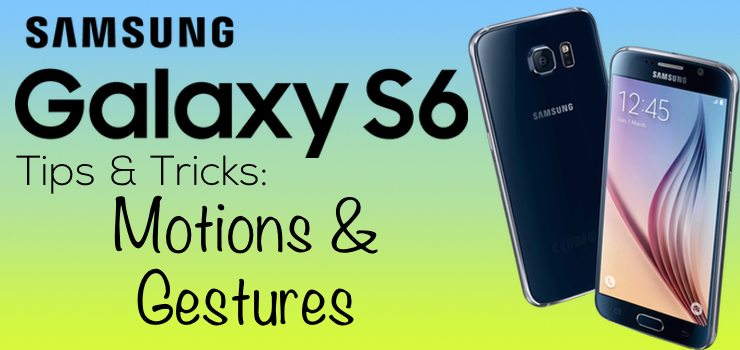
The Samsung Galaxy S6 includes a few intuitive motion and gesture-based actions that enable useful functions. Here’s how to enable and use motions and gestures on your Samsung Galaxy S6:
To enable the four motions and gestures, navigate to the Device page in the Settings app and tap on Motions and gestures.
- In this menu, we see an animation and description at the top, and a list of toggles below.
- Direct call will automatically dial the number of the contact message conversation you’re currently looking at when you raise the phone to your ear.
- Smart alert will make your Galaxy S6 vibrate whenever you pick it up if you have a missed call or message.
- Mute will silence phone calls and alarms if you either place your hand over the screen or flip the phone over.
- Palm swipe to capture makes it easier to snap a screenshot by letting you swipe the side of your whole hand across the screen, capturing whatever is beneath it.