How to Add a “New Markdown Notes File” Shortcut to Finder on macOS
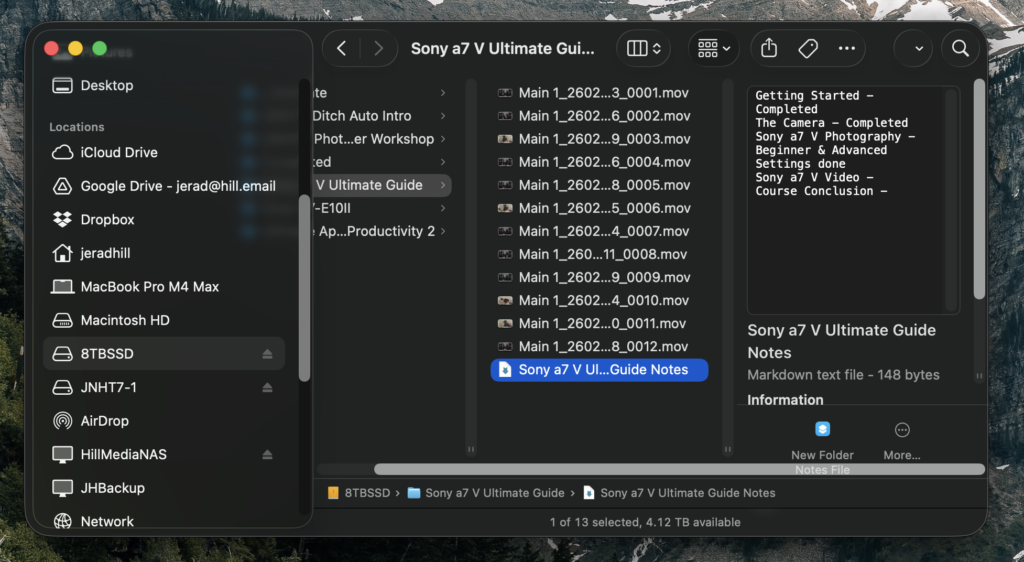
macOS still doesn’t have a built‑in “New text file” option in Finder, but you can get it with a simple Shortcut and a small AppleScript. This setup lets you create a Markdown notes file in the current folder, named after that folder (for example: Client Project Notes.md).
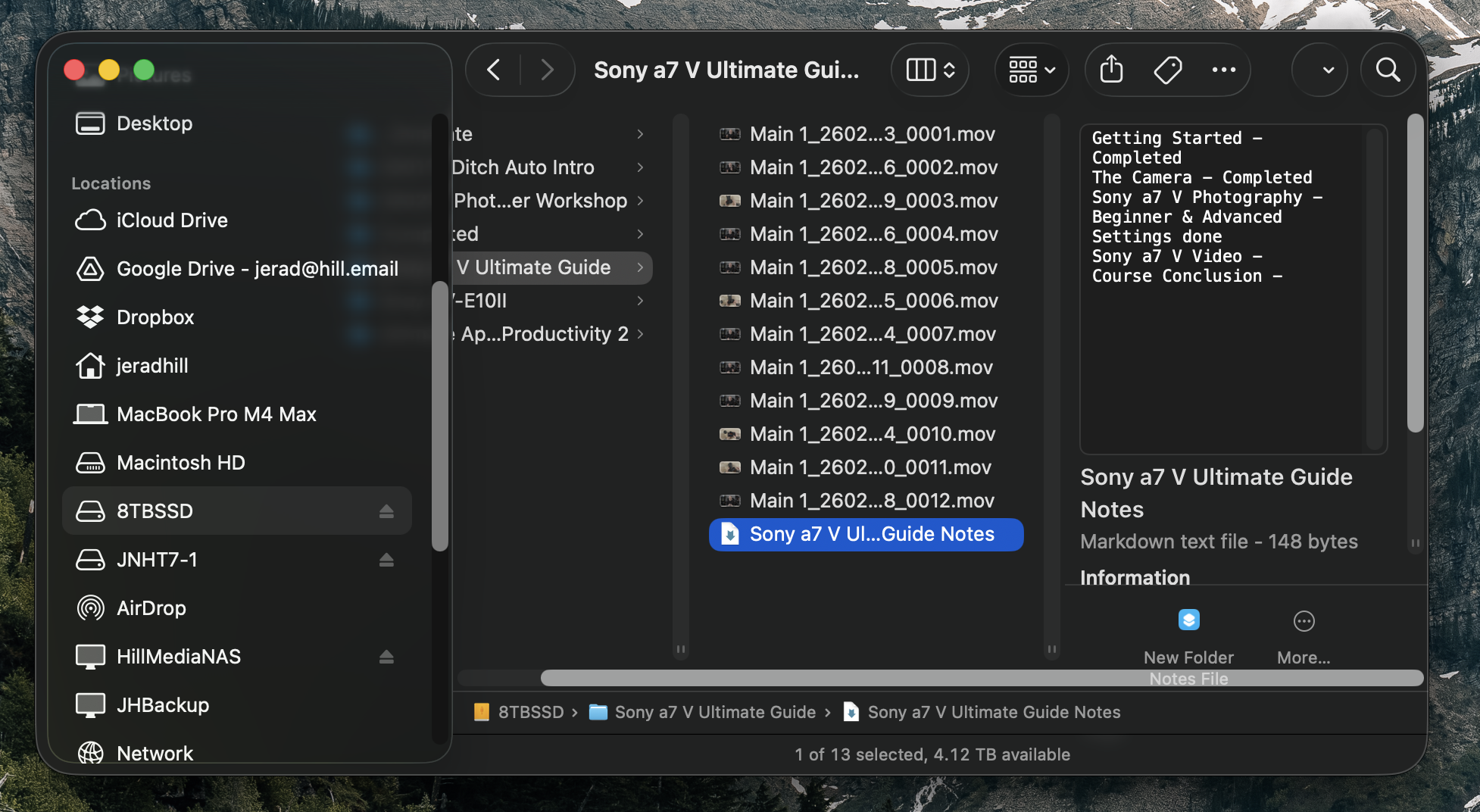
What this Shortcut will do
- Runs from Finder (via right‑click → Quick Actions or a keyboard shortcut).
- Looks at the frontmost Finder window to get the current folder.
- Creates a new
.mdfile in that folder. - Names the file
<Folder Name> Notes.md. - Opens the file in your default Markdown editor (for example, Sublime Text).
Step 1: Set your default editor for .md files
First, decide what app you want to use for Markdown (Sublime Text in this example), and set it as the default for .md files.
- In Finder, create or locate any
.mdfile. - Right‑click it and choose Get Info.
- In the Open with section, choose Sublime Text.
- Click Change All… and confirm.
From now on, any .md file you open from Finder will use Sublime Text.
Step 2: Create the Shortcut
- Open the Shortcuts app on your Mac.
- Click the + button to create a new shortcut.
- Give it a name like New Folder Notes (.md).
- In the right sidebar, search for Run AppleScript and add that action to the shortcut.
You’ll now see an AppleScript block with a default on run handler.
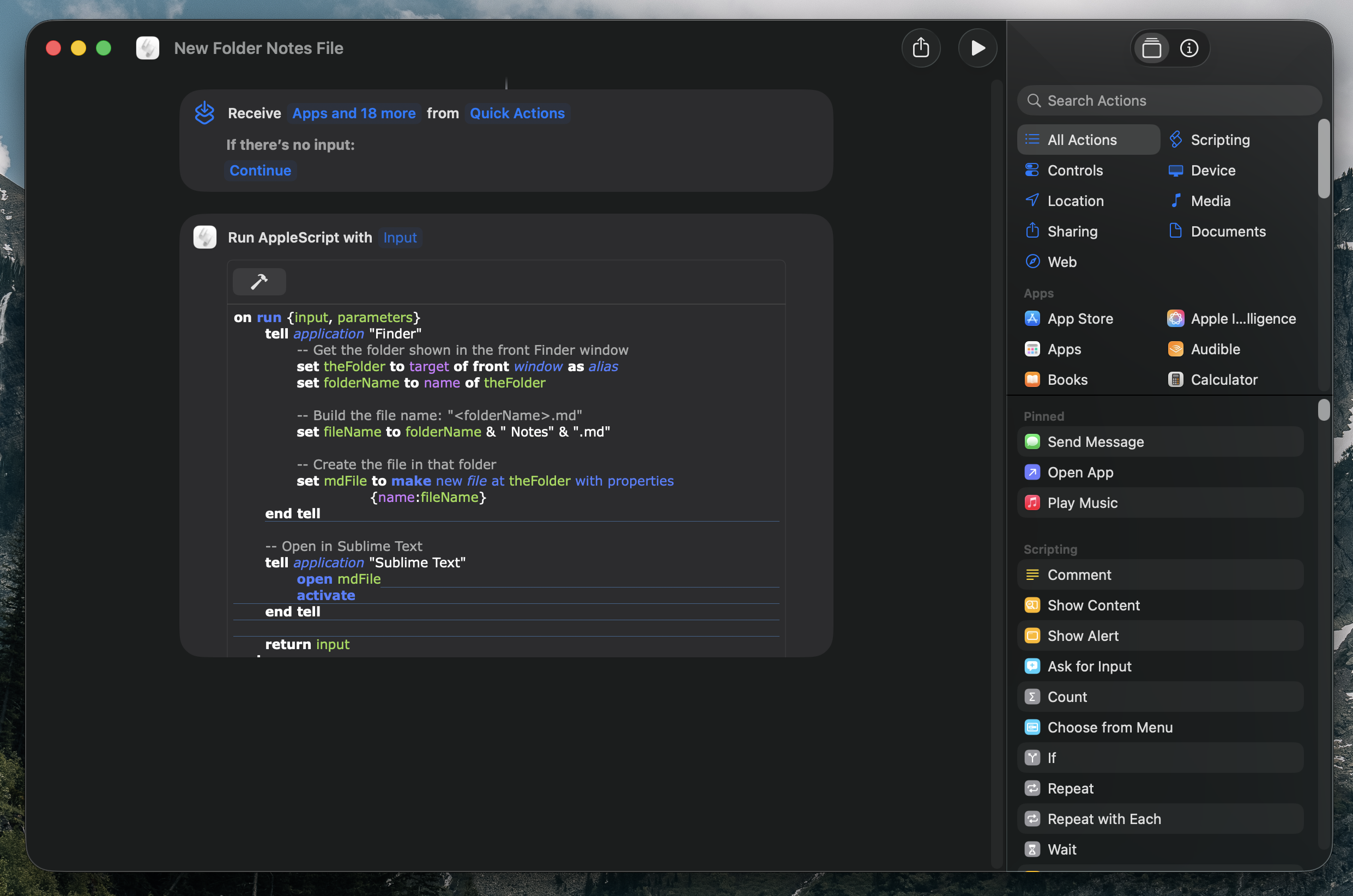
Step 3: Add the AppleScript
Replace whatever is in the AppleScript field with this:
on run {input, parameters}
    tell application "Finder"
        -- Get the folder shown in the front Finder window
        set theFolder to target of front window as alias
        set folderName to name of theFolder

        -- Build the file name: "<Folder Name> Notes.md"
        set fileName to folderName & " Notes" & ".md"

        -- Create the file in that folder
        set mdFile to make new file at theFolder with properties {name:fileName}
        select mdFile
    end tell

    return input
end run
What this script does:
target of front windowgets the folder currently shown in the frontmost Finder window.folderNameis the folder’s name (for exampleClient Project).fileNameconcatenates the folder name, a space, the wordNotes, and.mdto produceClient Project Notes.md.make new filecreates that Markdown file in the same folder and selects it.
Because you set Sublime Text as the default for .md, opening that file from Finder will now use Sublime.
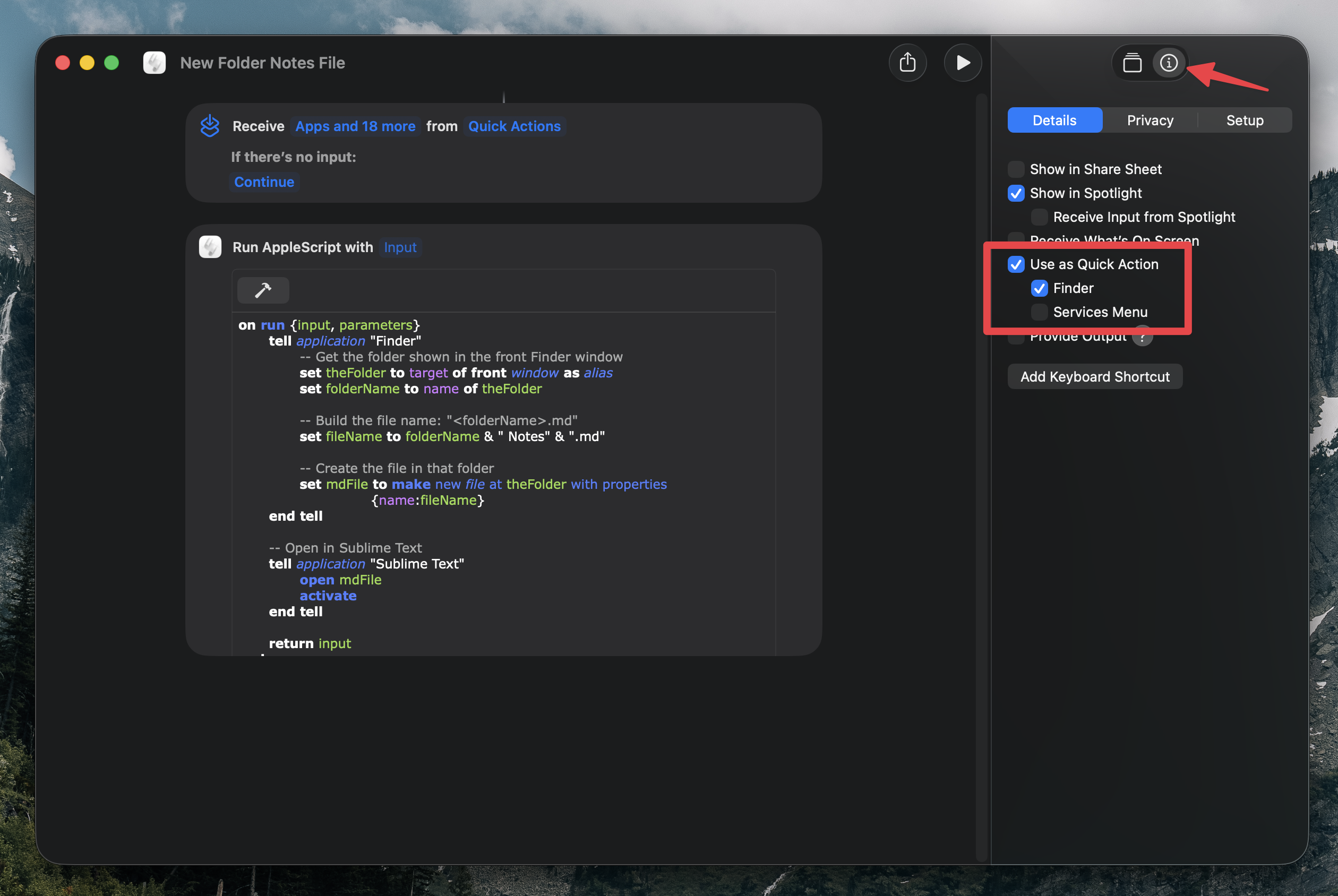
Step 4: Turn it into a Finder Quick Action
To make this feel native in Finder, configure the shortcut as a Quick Action.
- In the Shortcut editor, click the “i” (settings) button in the toolbar.
- Enable Use as Quick Action.
- Set Workflow receives (or similar wording) to work in Finder.
- Optionally, check Pin in Menu Bar if you want quick access from the menu bar.
Click Done to save.
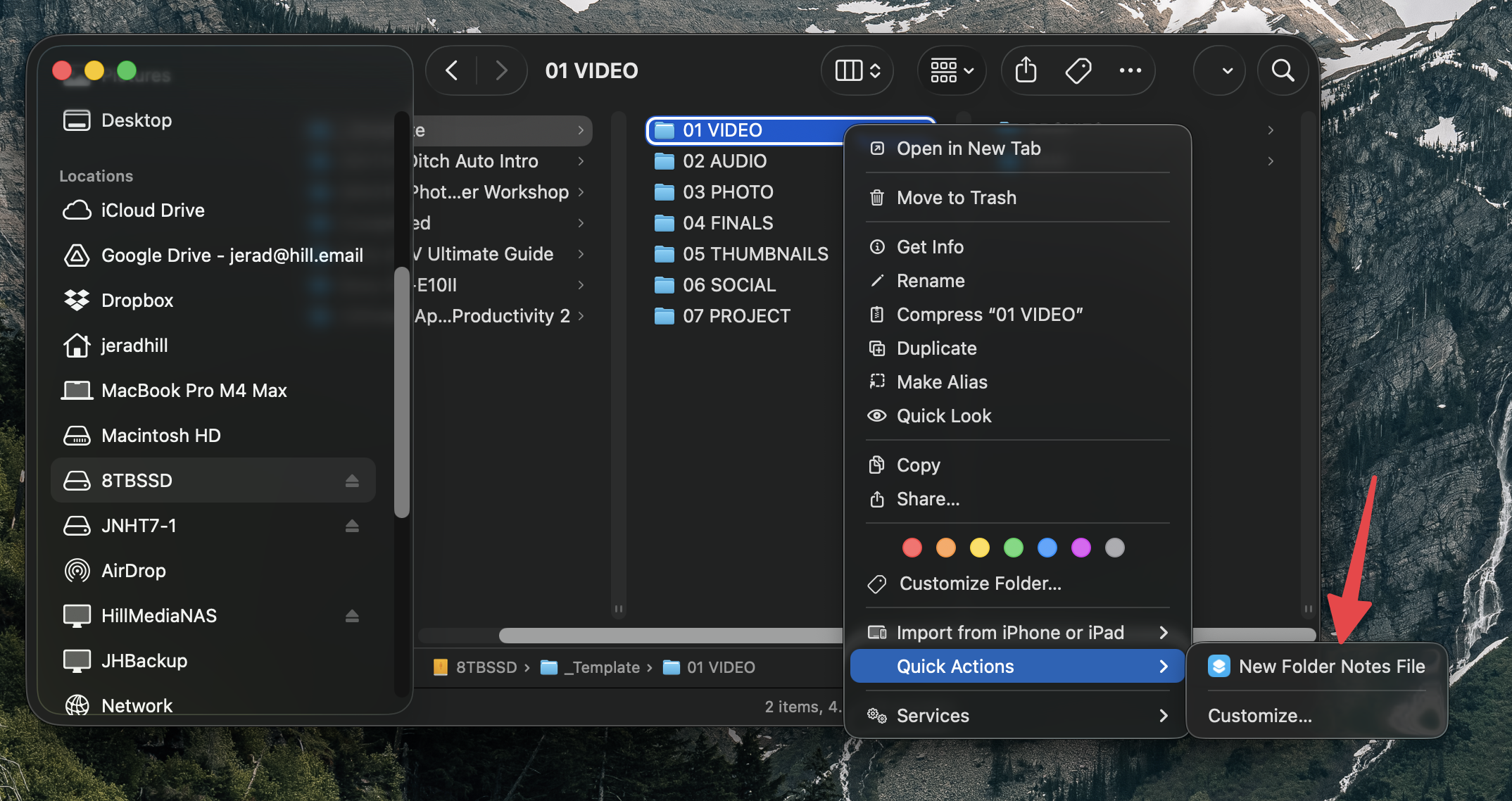
Now you can:
- Open a folder in Finder.
- Use the Finder > Services menu or right‑click → Quick Actions → your shortcut name.
- The Shortcut will create
<Folder Name> Notes.mdin that folder and select it.
Step 5: Add a global keyboard shortcut (optional)
To make it really fast:
- Open System Settings → Keyboard → Keyboard Shortcuts.
- Go to the section for Services or Shortcuts (varies slightly by macOS version).
- Find your New Folder Notes (.md) Quick Action in the list.
- Assign a keyboard shortcut (for example,
Control+Option+Command+N).
Now, with any Finder window active, you can hit your shortcut and instantly get a new Notes.md file, named after that folder.
Variations you can mention
Once the basic version is working, readers can easily adjust:
- Change the suffix from
" Notes"to something else (for example," Journal"). - Change the extension to
.txtif they prefer plain text instead of markdown. - Remove
Notesentirely to just use the folder name as the file name.
This gives macOS a “New Markdown Notes file here” behavior that feels almost as integrated as a native Finder menu item, without any third‑party tools.





You must be logged in to post a comment.